Textual:用 Python 构建现代化终端应用

Textual:用 Python 构建现代化终端应用

从静态输出到交互式界面,Textual 让终端应用开发如丝般顺滑
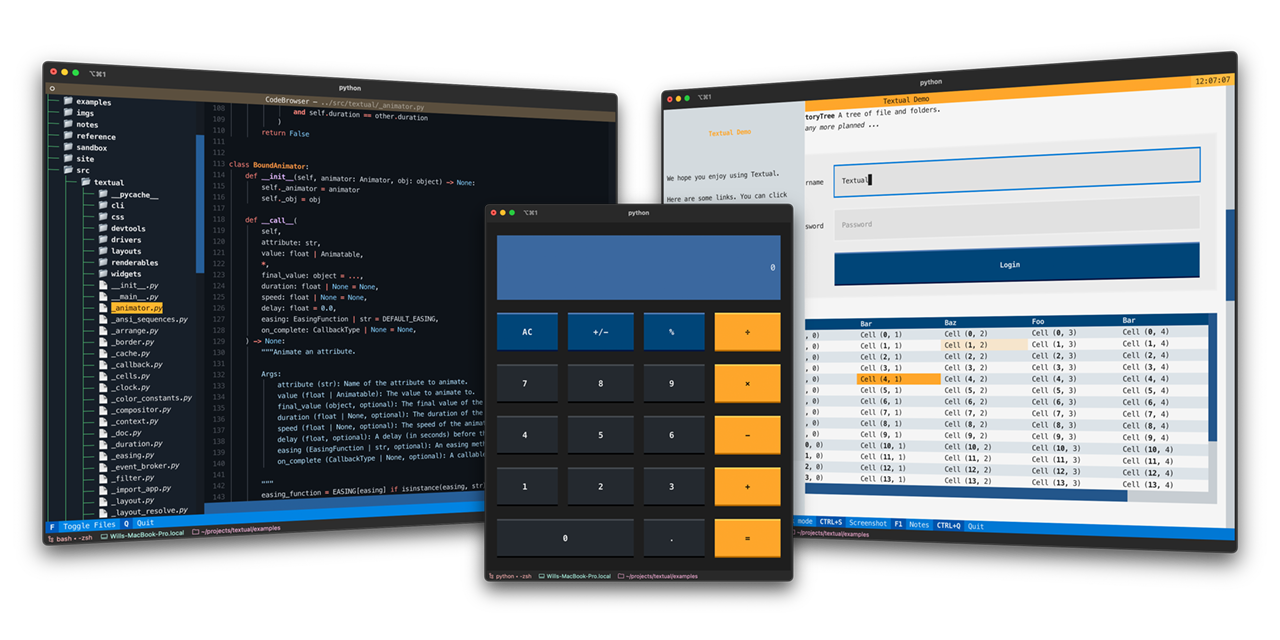
Textual Demo

如果说 Rich 是终端美化的「瑞士军刀」,那么 Textual 就是构建现代化终端应用的「重型武器」。它将终端视为一个完整的 UI 平台,让你能用 Python 写出媲美 GUI 的交互式应用。

什么是 Textual?

Textual 是一个 Python TUI(Terminal User Interface)框架,由 Rich 的创造者 Will McGugan 开发。它借鉴了现代 Web 开发的范式,提供组件化、响应式和声明式的开发体验。

Textual Architecture

图片来自 Textual GitHub

核心概念

1. 组件系统(Widgets)

Textual 提供丰富的预置组件:

1
2
3
4
5
6
7
8
9
10
11
12
13
14
15
16
17
18
19
20
21
from textual.app import App, ComposeResult
from textual.widgets import (
Button, Input, Label, DataTable,
ProgressBar, Static, Markdown, Select
)
from textual.containers import Horizontal, Vertical

class MyApp(App):
def compose(self) -> ComposeResult:
yield Label("欢迎使用 Textual", id="title")

with Horizontal(id="input-row"):
yield Input(placeholder="输入命令...", id="cmd-input")
yield Button("执行", variant="primary", id="run-btn")

yield DataTable(id="results-table")
yield ProgressBar(id="progress", total=100)

def on_button_pressed(self, event: Button.Pressed) -> None:
if event.button.id == "run-btn":
self.query_one("#progress").advance(10)

2. 布局系统

类似 CSS Flexbox 的声明式布局:

1
2
3
4
5
6
7
8
9
10
11
12
13
14
15
16
17
18
19
20
21
22
23
24
25
26
27
28
29
CSS = """
Screen {
align: center middle;
}

#title {
text-align: center;
text-style: bold;
color: $primary;
}

#input-row {
height: auto;
margin: 1 0;
}

#cmd-input {
width: 80%;
}

#run-btn {
width: 20%;
}

DataTable {
height: 1fr;
border: solid $primary;
}
"""

支持的布局模式:

  • 水平/垂直排列 (Horizontal, Vertical)
  • 网格布局 (Grid)
  • 弹性布局 (1fr, auto)
  • 层叠定位 (layers, dock)

3. 响应式数据绑定

使用 reactive 实现自动 UI 更新:

1
2
3
4
5
6
7
8
9
10
11
12
13
14
15
16
17
18
19
20
21
22
23
24
25
26
27
28
from textual.reactive import reactive
from textual.app import App, ComposeResult
from textual.widgets import Label, Input

class CounterApp(App):
CSS = """
Screen { align: center middle; }
Label { text-align: center; }
"""

# 响应式变量
count = reactive(0)

def compose(self) -> ComposeResult:
yield Label(id="counter")
yield Input(placeholder="输入数值...")

def watch_count(self, count: int) -> None:
"""count 变化时自动调用"""
self.query_one("#counter").update(f"Count: {count}")

def on_input_changed(self, event: Input.Changed) -> None:
if event.value.isdigit():
self.count = int(event.value)

if __name__ == "__main__":
app = CounterApp()
app.run()

4. 事件驱动架构

完整的事件系统支持鼠标、键盘、定时器等:

1
2
3
4
5
6
7
8
9
10
11
12
13
14
15
16
17
18
19
20
21
22
from textual.app import App
from textual.events import Key, Click, Mount

class EventDemo(App):

def on_mount(self) -> None:
"""应用挂载时触发"""
self.set_interval(1, self.tick) # 每秒触发

def on_key(self, event: Key) -> None:
"""键盘事件"""
if event.key == "q":
self.exit()
self.notify(f"按下: {event.key}")

def on_click(self, event: Click) -> None:
"""鼠标点击"""
self.notify(f"点击位置: ({event.x}, {event.y})")

def tick(self) -> None:
"""定时器回调"""
self.title = f"运行时间: {int(self.app.elapsed_time)}s"

实战案例:系统监控仪表盘

1
2
3
4
5
6
7
8
9
10
11
12
13
14
15
16
17
18
19
20
21
22
23
24
25
26
27
28
29
30
31
32
33
34
35
36
37
38
39
40
41
42
43
44
45
46
47
48
49
50
51
52
53
54
55
56
57
58
59
60
61
62
63
64
65
66
67
68
69
70
71
72
73
74
75
76
77
78
79
80
81
82
83
84
85
86
87
from textual.app import App, ComposeResult
from textual.widgets import (
Header, Footer, Static, DataTable, Sparkline, Label
)
from textual.containers import Grid
import random
import psutil

class SystemMonitor(App):
"""系统监控仪表盘"""

CSS = """
Grid {
grid-size: 2;
grid-columns: 1fr 1fr;
grid-rows: auto 1fr;
padding: 1;
}

.metric {
border: solid $primary;
padding: 1;
}

Sparkline {
height: 5;
}
"""

def compose(self) -> ComposeResult:
yield Header(show_clock=True)

with Grid():
with Static(classes="metric"):
yield Label("CPU 使用率", classes="title")
yield Sparkline(id="cpu-spark")
yield Label(id="cpu-text")

with Static(classes="metric"):
yield Label("内存使用", classes="title")
yield Sparkline(id="mem-spark")
yield Label(id="mem-text")

yield DataTable(id="processes")

yield Footer()

def on_mount(self) -> None:
self.cpu_history = [0] * 50
self.mem_history = [0] * 50

table = self.query_one("#processes", DataTable)
table.add_columns("PID", "Name", "CPU%", "Memory")

self.set_interval(0.5, self.update_stats)

def update_stats(self) -> None:
# CPU
cpu = psutil.cpu_percent()
self.cpu_history = self.cpu_history[1:] + [cpu]
self.query_one("#cpu-spark").data = self.cpu_history
self.query_one("#cpu-text").update(f"{cpu:.1f}%")

# Memory
mem = psutil.virtual_memory()
self.mem_history = self.mem_history[1:] + [mem.percent]
self.query_one("#mem-spark").data = self.mem_history
self.query_one("#mem-text").update(f"{mem.percent:.1f}% ({mem.used // 1024**3}GB / {mem.total // 1024**3}GB)")

# Process list
table = self.query_one("#processes", DataTable)
table.clear()
for proc in psutil.process_iter(['pid', 'name', 'cpu_percent', 'memory_info']):
try:
info = proc.info
table.add_row(
str(info['pid']),
info['name'][:20],
f"{info['cpu_percent']:.1f}",
f"{info['memory_info'].rss // 1024**2}MB"
)
except (psutil.NoSuchProcess, psutil.AccessDenied):
pass

if __name__ == "__main__":
app = SystemMonitor()
app.run()

Textual vs Rich:深度对比

维度 Rich Textual
定位 输出美化库 TUI 应用框架
复杂度
学习曲线 平缓 陡峭
交互能力 完整(鼠标/键盘/定时器)
布局系统 简单表格 类 CSS Flexbox/Grid
状态管理 响应式绑定
适用场景 脚本/工具输出 完整终端应用
典型应用 CLI 工具、日志 数据库客户端、调试器、Dashboard

选择指南

使用 Rich 当:

  • 只需要美化输出(日志、表格、进度条)
  • 构建简单的命令行工具
  • 希望在现有项目中渐进式采用
  • 不需要用户交互

使用 Textual 当:

  • 构建交互式应用(类似 GUI)
  • 需要响应用户输入(表单、按钮、菜单)
  • 需要多窗口/多面板布局
  • 需要实时更新的 Dashboard

两者的关系

Textual 构建在 Rich 之上,继承了 Rich 的所有渲染能力:

1
2
3
4
5
6
7
8
9
10
11
12
13
┌─────────────────────────────────┐
│ Your Application │
├─────────────────────────────────┤
│ Textual (TUI Framework) │
│ - Widgets, Layout, Events │
│ - Reactivity, State Mgmt │
├─────────────────────────────────┤
│ Rich (Rendering Engine) │
│ - Colors, Tables, Syntax │
│ - Console, Protocols │
├─────────────────────────────────┤
│ Terminal / Console │
└─────────────────────────────────┘

高级特性

1. 内置组件库

Textual 提供了 30+ 预置组件:

组件 用途
Button 按钮(支持变体:primary, success, warning, error)
Input 文本输入(支持密码、验证)
Select 下拉选择
Checkbox / RadioButton 表单控件
Switch 开关
Slider 滑块
DataTable 数据表格(支持排序、选择)
Tree 树形控件
TabbedContent 标签页
Markdown Markdown 渲染
TextLog 滚动日志
ProgressBar 进度条
Sparkline 迷你图表
DigitalClock 数字时钟

2. 屏幕与导航

1
2
3
4
5
6
7
8
9
10
11
12
13
14
15
16
17
18
19
20
21
22
23
24
25
26
27
28
29
30
31
32
from textual.app import App, ComposeResult
from textual.screen import Screen
from textual.widgets import Button, Label

class LoginScreen(Screen):
"""登录界面"""
def compose(self) -> ComposeResult:
yield Label("请登录", id="title")
yield Button("登录", id="login")

def on_button_pressed(self, event: Button.Pressed) -> None:
if event.button.id == "login":
self.app.push_screen("dashboard")

class DashboardScreen(Screen):
"""主界面"""
def compose(self) -> ComposeResult:
yield Label("欢迎使用", id="welcome")
yield Button("退出", id="logout")

def on_button_pressed(self, event: Button.Pressed) -> None:
if event.button.id == "logout":
self.app.pop_screen()

class MyApp(App):
SCREENS = {
"login": LoginScreen,
"dashboard": DashboardScreen,
}

def on_mount(self) -> None:
self.push_screen("login")

3. 动画与过渡

1
2
3
4
5
6
7
8
from textual.widgets import Static
from textual.reactive import reactive

class AnimatedWidget(Static):
opacity = reactive(1.0)

def on_mount(self) -> None:
self.animate("opacity", 0.0, duration=1.0, easing="out_cubic")

4. Web 浏览器支持

Textual 应用可以在浏览器中运行:

1
textual run --dev my_app.py  # 在浏览器中打开

这对远程运维或 Web-based 工具特别有用。

5. 测试框架

Textual 提供专门的测试工具:

1
2
3
4
5
6
7
8
from textual.pilot import Pilot
import pytest

async def test_button_click():
app = MyApp()
async with app.run_test() as pilot:
await pilot.click("#my-button")
assert app.query_one("#result").renderable == "Clicked!"

性能优化

对于数据密集型应用:

1
2
3
4
5
6
7
# 批量更新减少重绘
with self.batch_update():
for row in data:
table.add_row(*row)

# 虚拟化长列表(只渲染可见部分)
yield ListView(*items, initial_index=0)

生态与工具链

工具 描述
textual 核心框架
textual-dev 开发工具(CSS 热重载等)
textual-serve Web 服务部署

成功案例

  • Harlequin: SQL IDE for the terminal
  • Memray: Python 内存分析器(可视化)
  • Baca: EPUB 阅读器
  • Dolphie: MySQL 监控工具

学习资源

总结

Textual 代表了终端应用开发的现代范式:

  • 声明式 UI 替代命令式绘图
  • 组件化 提升代码复用
  • 响应式 简化状态管理
  • 跨平台 一次编写到处运行

对于需要在终端中构建复杂交互应用的 Python 开发者来说,Textual 是目前最成熟、最强大的选择。它将 Rich 的渲染能力与 React/Vue 式的开发体验完美结合,让终端应用开发真正进入了现代时代。


延伸阅读:

相关项目: